Pages

Showing posts with label Free tutorial. Show all posts

Sunday, December 13, 2015

Step by Step Merge transformation control in SSIS TIP #122

In the Series of Zero to hero in SSIS  this is another post. In this post we are going to discuss Merge transformation control.

By the name it is clear that Merge transformation do some merge related task. For example suppose there is two sources which are source1
and source2. Now we want merge records of Source1 & Source2 then this transformation is helpful.
Although, sometimes you might confuse that there is already UNION ALL transformation the when to use UNION ALL or Merge transformation.
For Merge transformation we require sorted inputs and there is only two inputs required. The output of merge transformation will be sorted output.
Let’s start it Step by Step
Step 1:- Firstly configure the sources. In current example I am using AdventureWorks2008 database’s person table and using FirstName, LastName, MiddleName columns as a Source1. For Source2  I am using AdventureWorks2012 database’s person table and using FirstName, LastName, MiddleName again. (You can choose any different source like flat file, excel ,other data source provider as well to make it simple I am  using same source)
source1
Step 2:- Once you setup your data source the next mandatory condition is the output should be sorted. So here we are using Sort transformation control. Now for first source we are sorting data on FirstName,MiddleName, LastName.
Sort1
and for second source we are sorting data on FirstName , LastName ,MiddleName


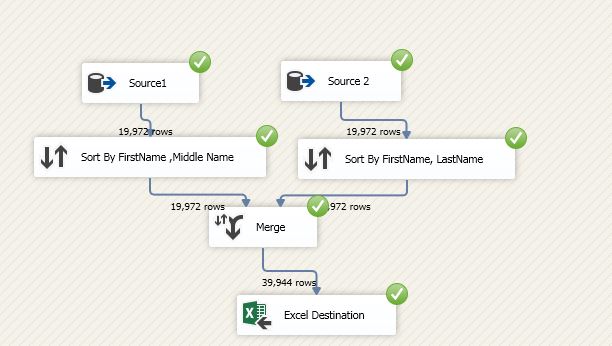
Step 3: Now once we have two sorted input we are going to use Merge transformation control so just drag drop and configure it. As shown in below figure. So there are two inputs which is Merge Input 1 & Merge Input 2 and we configured the data according to our need. And if you see below screen you will find “Configure the properties used to merge two sorted inputs into one output” which means for Merge transformation we require two sorted inputs only.


Step 4:- Now,we want the output of merge transformation in an excel so, here dropped Excel destination and configure it.So  you can see below configured package with excel destination.

Step 5:- Now just hit F5 or run it. If everything configured properly then you will get all the green checks with no of rows count at each level as shown in below figure
Step 6:- We can cross check Excel also so in my case we got the required data as shown in below Excel's snapshot.


So, Isn’t it simple ?
Here the important points to remember
1) Merge requires Sorted inputs only
2) Merge requires only two inputs
I hope this tutorial might help you. I appreciate your feedback.
Enjoy !!
RJ!!

Monday, August 24, 2015

WWH of SSIS Zero to Hero in SSIS series (How to Use SSIS ?) TIP #112

Hello Friends,

Welcome, back to Zero to Hero in SSIS series(Post #110). In last post #111 ,We gone through the WW (What & Why part) of SSIS in this post we will try to understand How to start SSIS ? How to use SSIS tool ?

You can start SSIS with SQL Server Data Tools  which you  can find in Microsoft SQL SERVER 2012 folder in start menu.

SSIS_With_SQL_SERVER_2012

Here only the name is different but you will find same Visual Studio IDE when you click on this SQL SERVER data tools icon.

In the IDE when you click on New Project option from File Menu

New_project_option

You will get below screen in which you need to select Business Intelligence template  and then select Integration Services. You will get two option “Integration Service Project” & Integration Service Import Project wizard

Ssis_templates

Now, We can select any template and proceed further. In general we select “Integration Service Project” . Here I am going to share some basic components when you try to create  SSIS Project.

Don’t bother if you don’t understand the definition of explanation given below. I know theoretically it might be hard but practically it is much much easier. 

Basic_Concept

1) Control Flow :-  Control Flow  is one of the most important component. Think this as as a container which helps in workflow. If you see below image Control Flow is first tab. It might contain tasks or container. It is helpful in sequencing of task (where task can for loop, send mail, xml process,etc.)  Below is container tools which we can use.

ContainerTool

2) Data Flow Task :- Another most important component is Data Flow Task.  As the name state it is a task in which data flow. Isn’t it simple ?  A data flow is part of Control Flow Task. All the major operation can be accomplished with the help of data flow task controls. When you use DFT(Data flow task) you will get various option like Data Sources (from where we need to fetch data) ,Transformation controls( Operation control like aggregation, split etc.) by which we can customize the data and last but not the least Destination in which format we need the data back like SQL Server, MYSQL, ORACLE etc. (We will discuss each DFT controls in detail in coming posts). Below is DFT tools which we will use later on.

DFT_tools

3) Parameters:- I am sure you are aware of this parameters. Parameters are variables which help you in execution of your business logic (it might be possible you might require or not require.). Parameter has different scope and according to our need we will use and define the scope. not to worry about this as well right now. We will discuss and see practical use in coming posts. Below is the screen from which we can add parameters if required.

Parameter_Add_screen

4) Event Handlers:- Event handler is the easy way to have control over your SSIS events. We can have different events like onError, onPostExectution etc. which give us liberty to improve the reliability ,monitoring  and auditing of a package closely. We will surely going to do demo for this.

Event_Handler

5) Package :- The final output of all the above core component is a Package. In other word Package is combination of various Control flow, Data flow tasks , parameters to achieve a ETL task. Earlier the extension of package was DTS and with latest version it is DTSX. If someone ask you what you do with SSIS tool you can simply say we create Packages in which we use different control flow & task flow control and once it is completed we deploy the Package. The important point here is we create a Package and then execute it by deploying.

DTSX_Package


Now in broader way if we envision it. Below picture might help you to understand it.

Package

In Next post we will go one step ahead.

Please do provide your inputs what you are thinking so far ?

Enjoy !!!

RJ!!